Select by Font Size
Selects text objects based on font size conditions.
For example, if you specify a range of 10pt to 20pt, all text objects with font sizes within that range (e.g., 12pt or 18pt) will be selected. This allows batch selection of text matching the conditions, making it possible to perform selections that are difficult with Illustrator's native features. It is also useful for finding very small text (e.g., 5pt or less) that cannot be reproduced in print.
Palette description
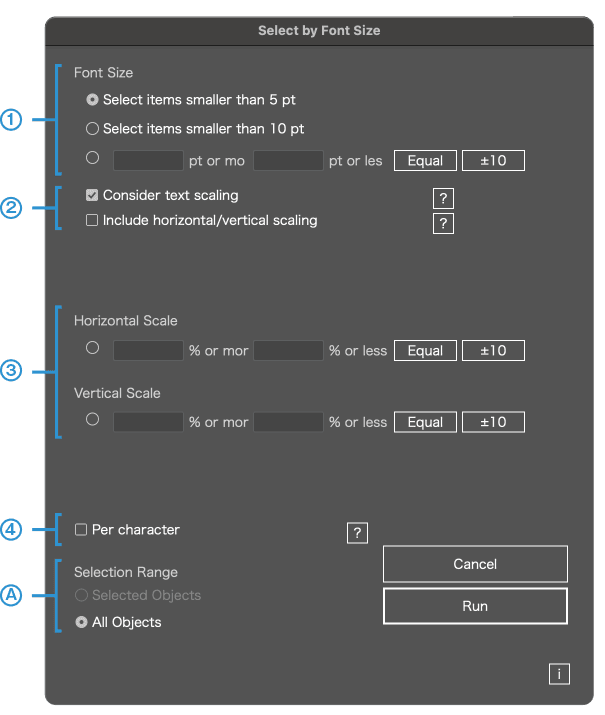
You can select text objects by specifying a font size range
1
Specify font size range
For example, if you specify a range of 10pt to 20pt, all text objects with font sizes within that range (e.g., 12pt or 18pt) will be selected. You can also specify very small text (e.g., 5pt or less) to identify text that cannot be reproduced in print.
2
・Specify conditions
Consider text scaling
Font size is affected by horizontal and vertical scaling. For example, a 10pt character scaled down to 50% appears as 5pt. If this option is unchecked, scaling settings will be ignored.
Consider horizontal/vertical scaling
When scaling is applied only horizontally or vertically (condensed or extended text), the text is treated as visually scaled down.
3
Horizontal/Vertical ratio of fonts
You can select text by specifying the range of horizontal (vertical) ratio.
Click the Match button to set the minimum and maximum to the same value. Click the +-10 button to adjust the minimum and maximum by -10% and +10%, respectively.
4
Individually check inside text objects
Inside a text object, some characters may have been resized individually. If this option is checked, each character’s size will be examined individually.
A
Filter target objects
This script cannot run if locked objects exist. This is due to internal processing limitations. Please unlock objects before running.