Select Objects by Color
Selects objects that match specified conditions such as CMYK or RGB values, tint, and opacity.
Selects objects based on conditions such as CMYK or RGB values, spot color tint, opacity, similarity, extreme values, or rich black. For example, specifying C between 20% and 50% will select all objects whose C value falls within that range (e.g., C45). You can batch-select matching objects and choose whether to target fills, strokes, or both. This script enables conditional selections that are difficult with Illustrator's native functions.
Palette Description
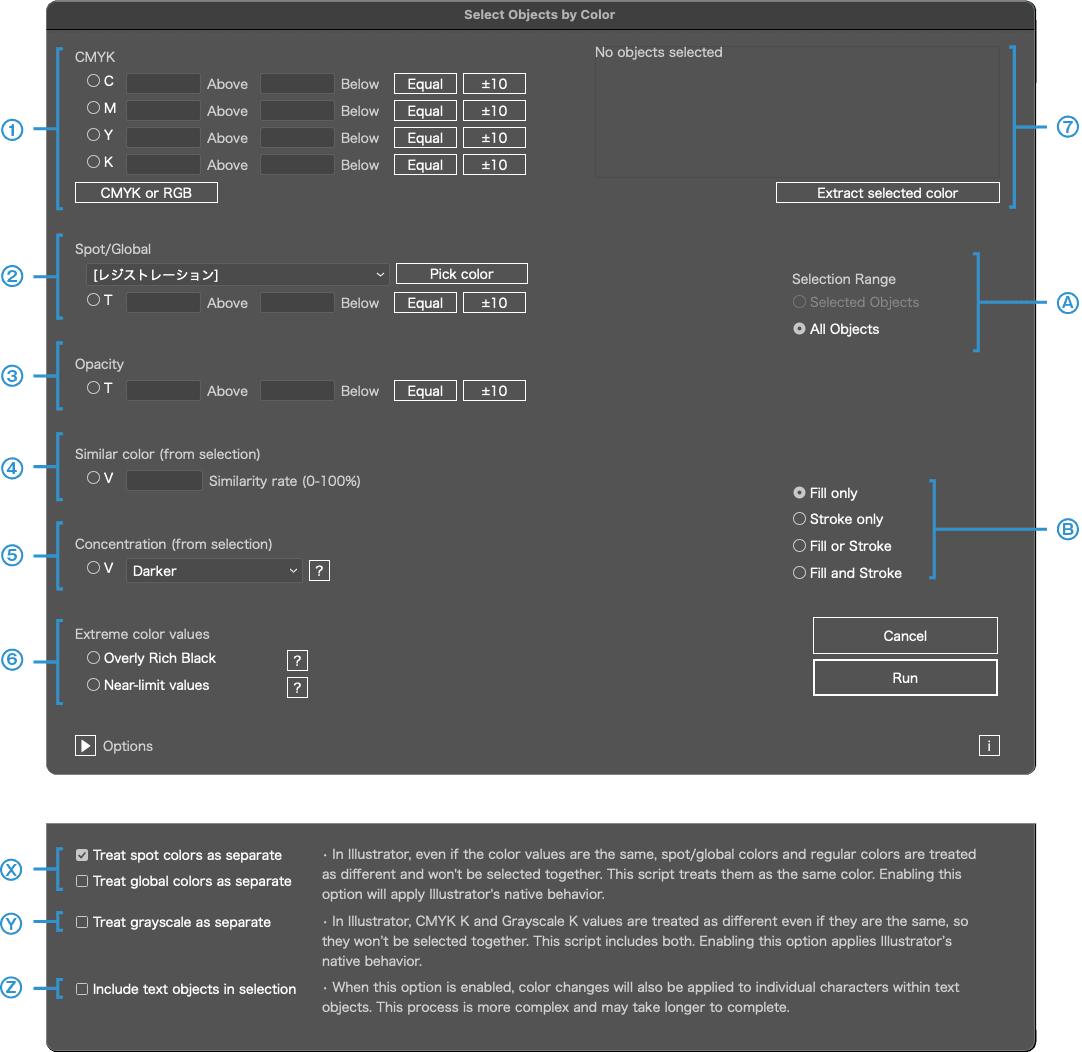
You can select objects by color or other methods. Choose one of the six methods below and specify the range.
1
CMYK (or RGB)
2
Spot / Global Colors
3
Opacity
4
Similarity
5
Tint / Brightness
6
Extreme Color Values
1
CMYK (or RGB)
Specify a color range. For example, if you set C between 20% and 50%, all objects with C values within that range (e.g., C45) will be selected.
2
Spot / Global Colors
You can specify a spot or global color by name and tint range. For example, specifying color name "PANTONE 300 C" and tint between 20% and 50% will select all objects using that color within the range (e.g., 45%).
Click the Get Color button to retrieve the spot/global values from the selected object.
3
Opacity
Specify an opacity range. For example, if you set between 20% and 50%, all objects with opacity within that range (e.g., 45%) will be selected.
Click the Match button to set the upper and lower values the same. Click the ±10 button to decrease/increase each bound by 10%.
4
Similarity
Choose a reference color, then select objects based on how similar their color is to the reference.
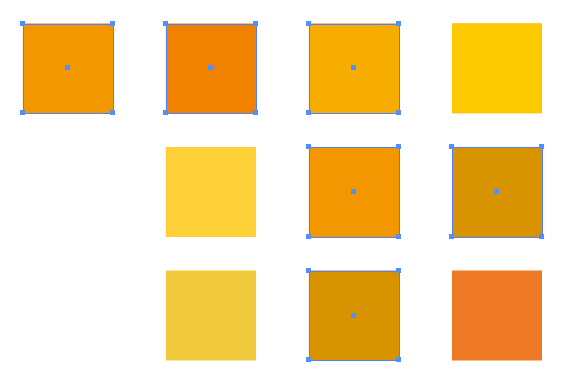
How similarity is determined
The reference color (CMYK, RGB, etc.) is converted into Lab color space, which approximates human perception. The difference (ΔE) between two colors is calculated. If the difference is less than or equal to the set threshold, the colors are considered 'similar'. The threshold is adjustable using the 'Similarity Ratio' percentage: the higher the value, the stricter the judgment. ※ This is a simplified evaluation and does not account for lighting conditions, surrounding colors, or individual visual differences.
5
Tint / Brightness
Choose a reference color, then select objects that are either 'darker' or 'lighter' than that color.
How 'darker' and 'lighter' are determined
The reference color is converted into Lab color space, and its L* value (lightness) is compared. If the L* value is lower than the reference, the object is considered 'darker'; if higher, 'lighter'. ※ This is a simplified evaluation and does not account for hue or saturation differences.
6
Extreme Color Values
※ This function is available only in CMYK documents. It cannot be executed in RGB documents.
◯ Excessive Rich Black
Selects rich black combinations with high CMY values that may cause issues in printing (e.g., [C]80 [M]80 [Y]80 [K]90). Such values often occur when RGB data is converted directly into CMYK. However, if [K] = 100% is included, it is regarded as intentional black and excluded from selection.
◯ Near-Extreme Values
Values close to extremes (95% or higher, 5% or lower) may produce unintended results during printing. However, 0% and 100% are considered intentional and excluded. Additionally, even if a component is below 5%, if the total of those values exceeds 12%, it is considered intentional and excluded.
7
Display CMYK (or RGB) Values of Selected Objects
Click the Extract Color button to set the values into CMYK (or RGB).
A
Filter Target Objects
B
Filter Fill or Stroke Targets
About Options
Click ▶ to configure option settings.
X
Treat Spot Colors as Unique Colors
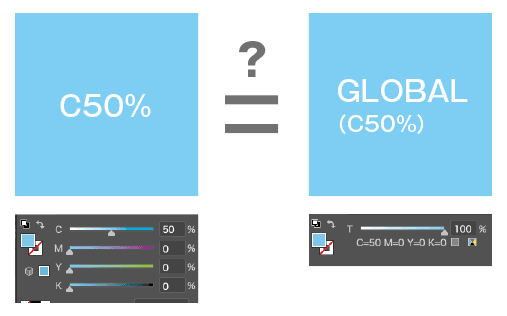
In Illustrator, even if the color values are the same, spot and process colors are treated as different and cannot be selected together. For example, an object with a process color C50 and an object with a spot color C50 are treated as different, even though they appear identical. This script treats them as the same color. Enable the checkbox to mimic Illustrator's native behavior (treating them as different).
Treat Global Colors as Unique Colors
Similar to 'Treat Spot Colors as Unique Colors', global and non-global colors with the same values are treated separately.
By default, Spot Colors are checked (treated separately) and Global Colors are unchecked (treated as the same). ※ This is because Illustrator already treats spot colors as unique by default, and the initial setting is kept safe (checked) to prevent misselection of print or brand colors.
Y
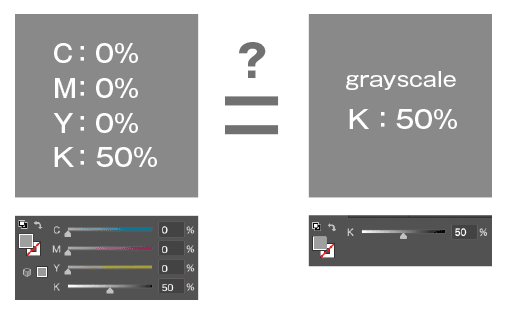
Treat Grayscale as a Different Color
In Illustrator, a K value in CMYK only (e.g., C=0 M=0 Y=0 K=50) and a Grayscale K value (e.g., K=50) are treated as different and cannot be selected together. This script treats both as the same color. Enable the checkbox to mimic Illustrator's native behavior (treating them as different).
Z
Include Text in Selection
When enabled, the selection will also apply to individual characters within text objects. Since this process is more complex, it may take longer to complete.

This script cannot be executed if there are locked objects. This limitation is due to internal processing specifications. Please unlock objects before running the script.