Relink Images
Relink the selected images to other files based on their file names.
This script is useful, for example, when large image files make your work heavy and you want to temporarily relink them to lighter versions. Prepare low-resolution images in advance with Photoshop or another tool, and then use this script to relink them all at once.
What is Relink Images?
This script relinks the selected images to other files based on their file names. You must prepare the replacement images in advance.
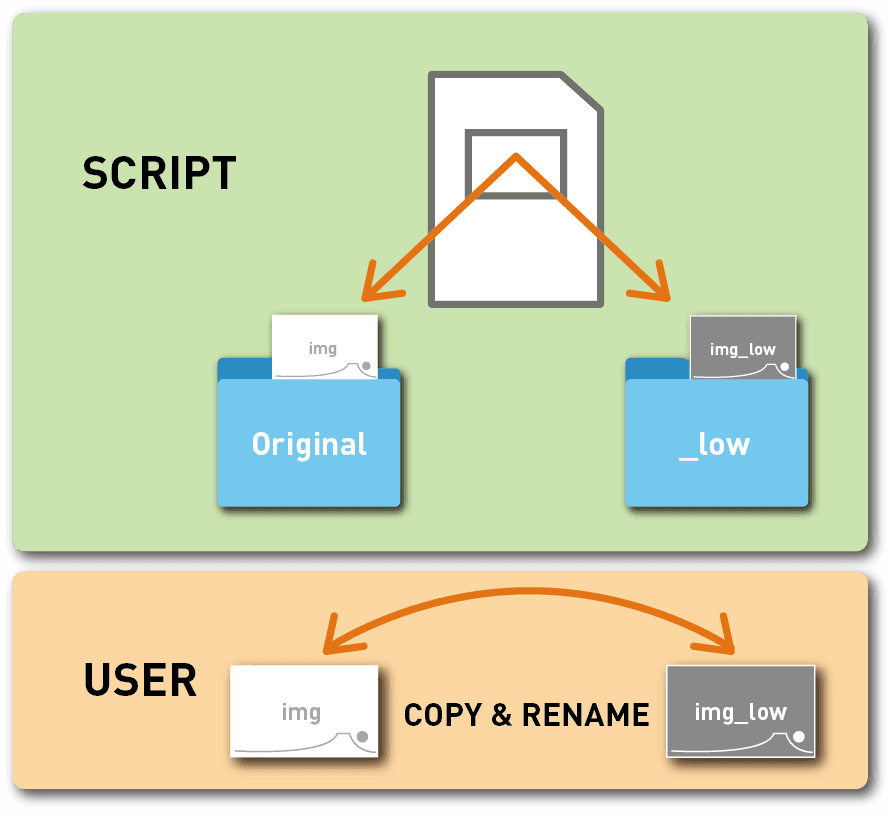
For example, if the original file names are image01, image02, image03... they will be relinked to image01_low.jpg, image02_low.jpg, image03_low.jpg...

The rule is: original filename + “_low”.

Allowing free filenames may lead to misplaced or missing images. To prevent such issues, the rule is fixed to “_low” for safety.
Preparation
Before using this script, prepare a folder containing the replacement images. Copy the original files there, adjust resolution or other settings, and rename them with the original filename + “_low”. (Adobe Bridge is useful for batch renaming.)
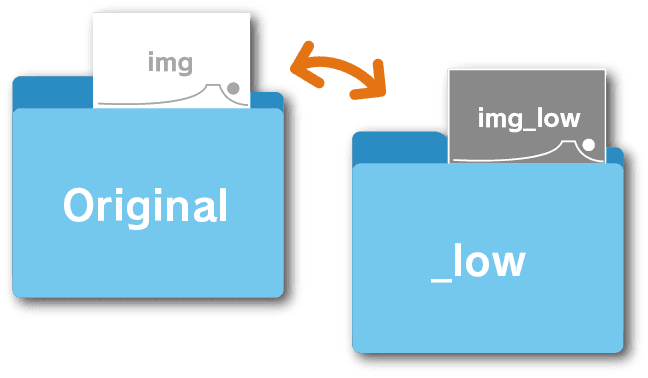
Once preparation is complete, run the script.
Palette Description
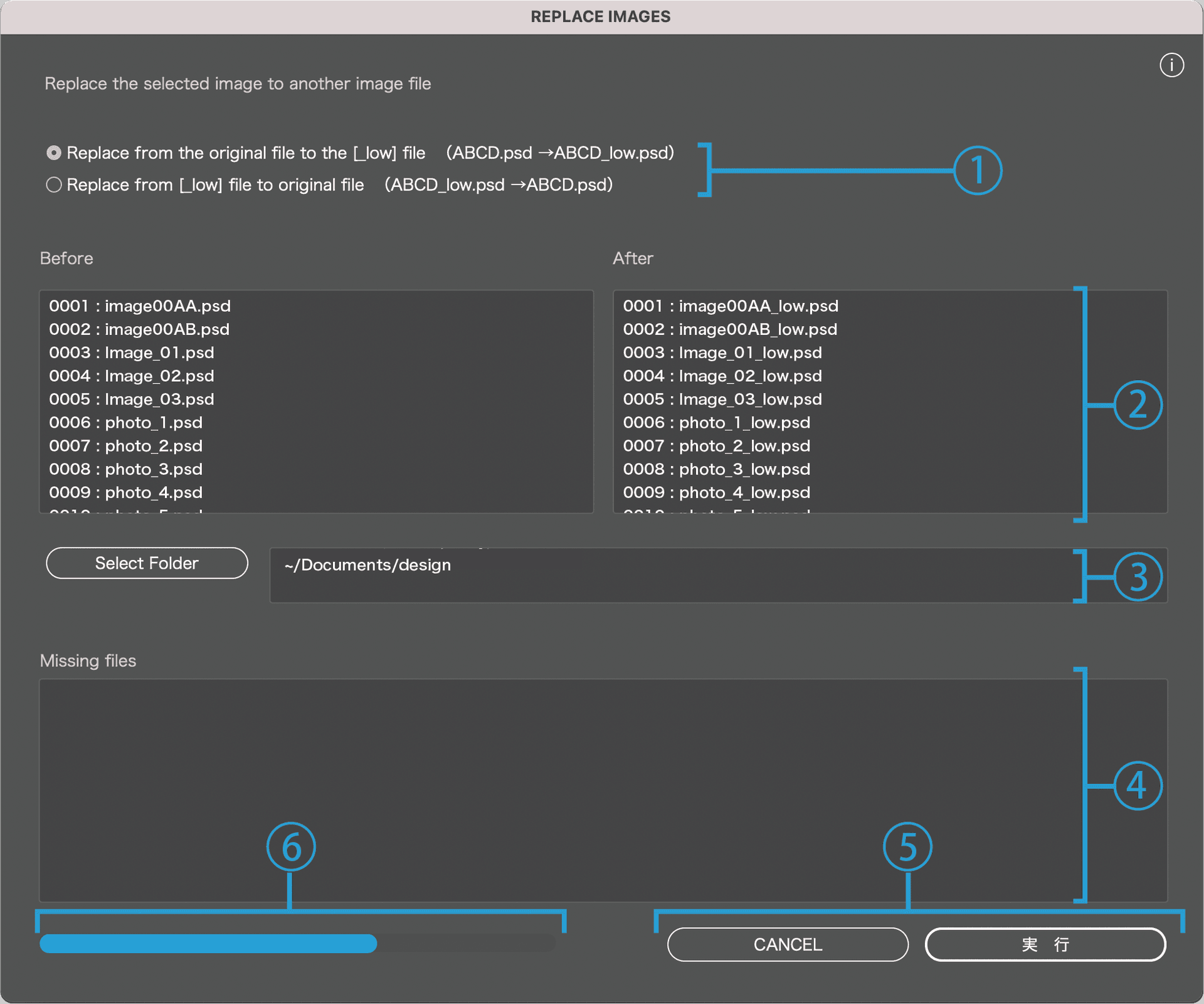
1
Choose whether to relink from the original file to the [_low] file, or from the [_low] file back to the original.
2
You can preview the filenames before and after the change.
If an image cannot be found, an (X) mark will appear after its filename.
3
Specify the folder containing the replacement images.
By default, this is the same folder as the AI file.
4
List missing files.
Missing files will be ignored.
5
Cancel / Run
Click Run to execute the script, or Cancel to close the dialog.
6
A progress bar will show the status during execution.